
The Orders section allows users to manage and track product or service orders. It includes options to create, view, and manage orders efficiently.
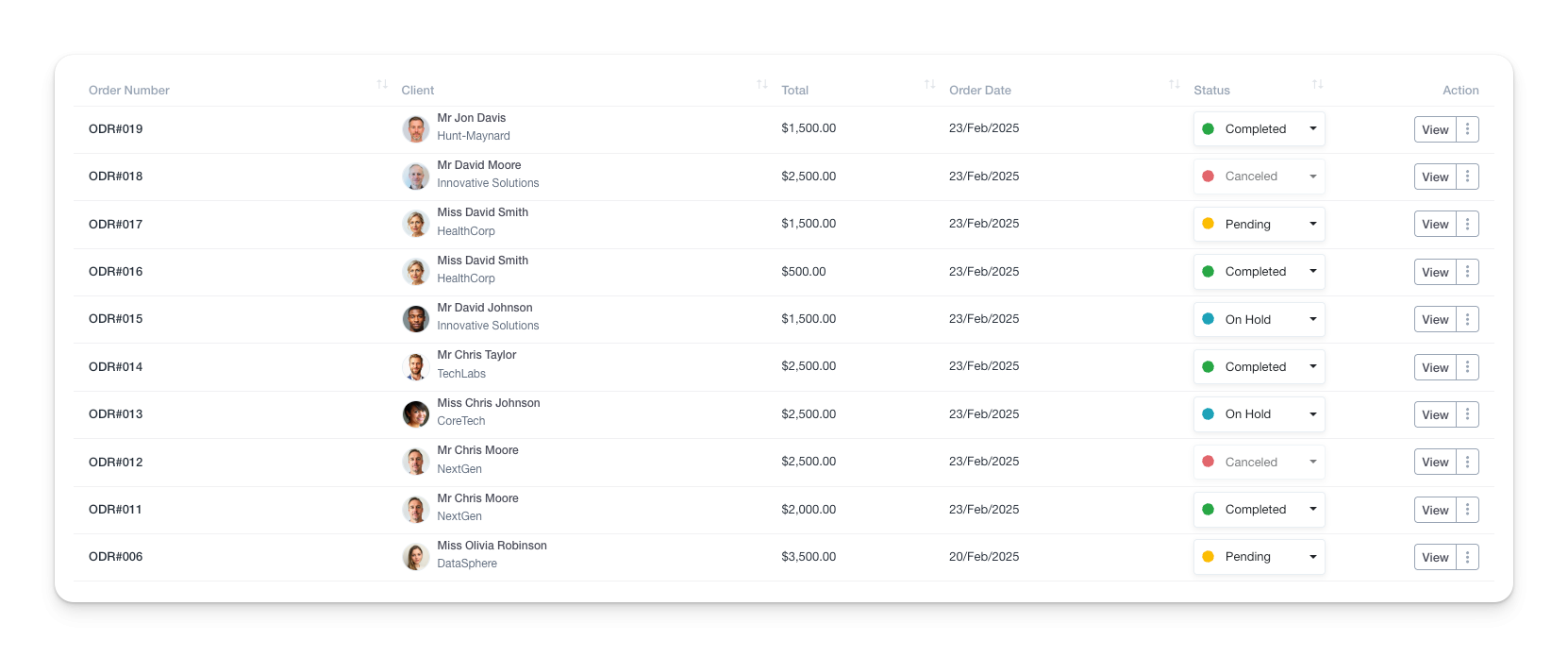
Viewing Orders
- Navigate to the Orders module from the left sidebar.
- The orders list displays order numbers, clients, totals, order dates, statuses, and available actions.
- Use the Filters button to refine search results by duration, date range, and client.
- The Export button allows downloading the list for external reporting.
Creating a New Order
- Click Add New Order at the top of the Orders page.
- Enter the Order Number and select the Client.
- Specify the Shipping Address if applicable.
- Assign the Order Status (Pending, Completed, Processing, etc.).
- Select Products to add items to the order and define their quantities.
- Apply Discounts and Taxes if necessary.
- Enter additional notes in the Client Note field if needed.
- Click Submit to finalize the order.
Managing Order Status
- Orders can have different statuses such as:
- Pending – Awaiting processing.
- Processing – Currently being fulfilled.
- Completed – Successfully delivered.
- Canceled – Order has been voided.
- On Hold – Temporarily paused.
- Failed – Not successfully processed.
- To change an order status:
- Click the View button next to an order.
- Update the status from the dropdown list.