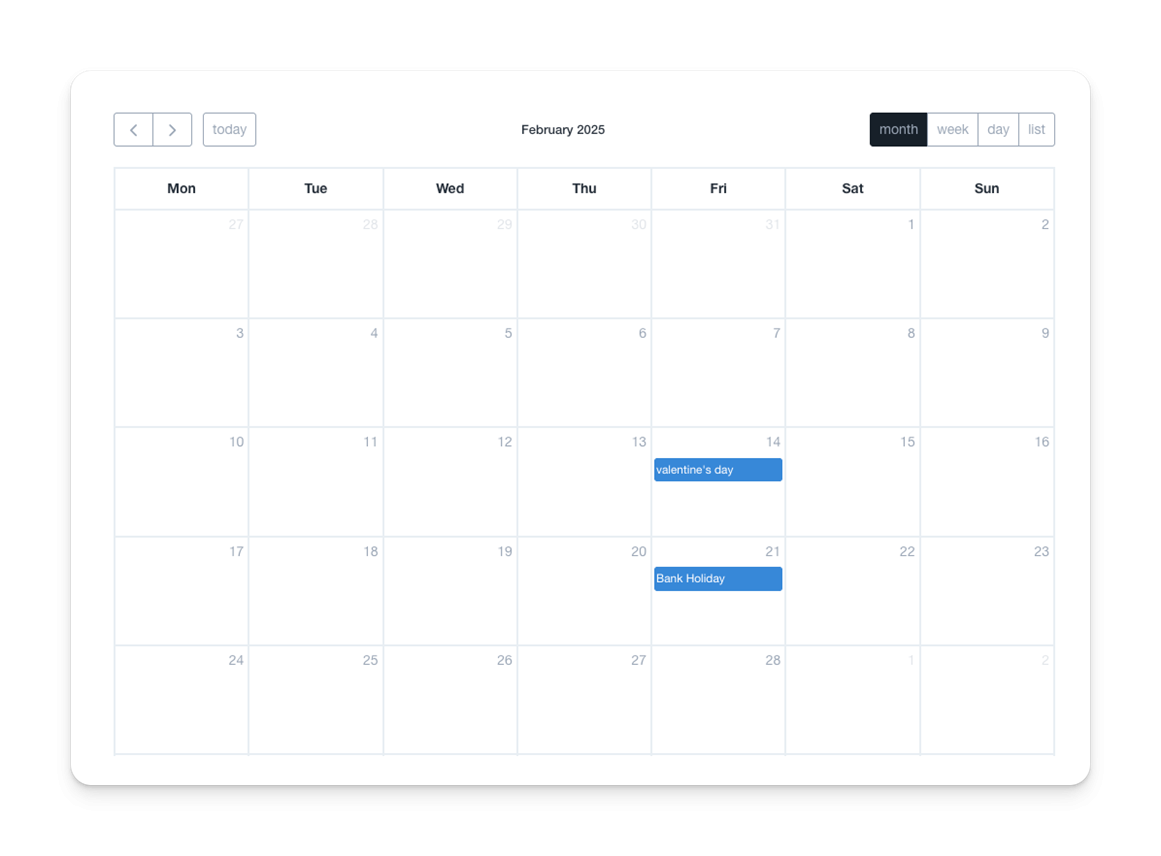
The Holiday module in Risper CRM allows HR teams to schedule and manage company-wide holidays efficiently. It provides options to add, modify, and export holiday records for better workforce planning.
Adding a New Holiday
The Holiday Dashboard provides an overview of all company-declared holidays. Each entry includes:
- Date – The specific day of the holiday.
- Occasion – The name of the holiday (e.g., Christmas Eve).
- Day – The weekday the holiday falls on.
- Department – Departments affected by the holiday.
- Designation – Roles that the holiday applies to.
- Employment Type – Specifies if the holiday applies to full-time, part-time, or contract employees.
Users can filter holidays by month and year to view relevant holiday records.
To create a new holiday:
- Click “Add Holiday”.
- Select the Date of the holiday.
- Enter the Occasion name (e.g., Christmas Day).
- Click “+ Add” to specify the affected:
- Departments (Select which departments will have the holiday).
- Designations (Choose specific job roles affected).
- Employment Type (Full-Time, Part-Time, etc.).
- Click “Save” to finalize the holiday entry.
Marking Default Holidays
- Click “Mark Default Holidays” to automatically apply pre-defined public holidays to the system.
- This helps in standardizing holiday schedules across all departments.
Exporting Holiday Records
- Click the “Export” button to download a list of holidays in Excel format.
- This allows HR teams to maintain records and distribute holiday schedules among employees.
This feature ensures better workforce plan