
The Leads page helps track and manage potential business opportunities, providing an organized view of all leads, their stages, and relevant details.
Overview of the Leads Page
- Pipeline Selection: Users can choose from different pipelines to filter leads (e.g., Sales Pipeline).
- Search & Filters: Allows users to search for leads and apply filters based on date, status, or other criteria.
- Actions Available:
- + Add Lead: Manually create a new lead.
- Import: Upload bulk leads using a file.
- Export: Download lead data in XLSX format.
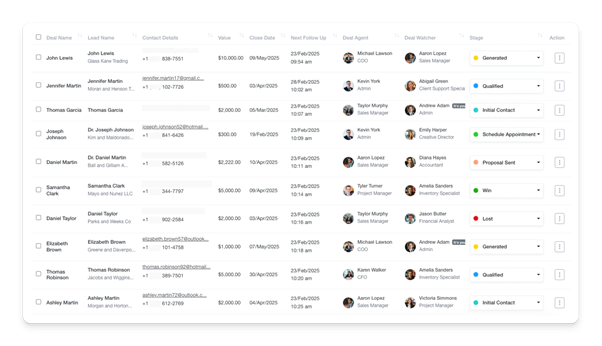
Leads Table Fields
- Lead Name: The title assigned to the lead.
- Lead Name: The associated lead or client.
- Contact Details: Email and phone number of the lead.
- Value: The estimated value of the lead.
- Close Date: Expected closing date for the lead.
- Next Follow-Up: Scheduled next step for engagement.
- Lead Agent: The assigned salesperson or responsible team member.
- Lead Watcher: A user monitoring the lead’s progress.
- Stage: Indicates the current progress of the lead.
- Action: Options to modify or manage the lead.
Managing Lead Stages
Users can update the Stage of a lead based on its progress. Available options include:
- Generated (Default)
- Qualified
- Initial Contact
- Schedule Appointment
By clicking on the stage dropdown, users can move leads through different phases as they progress.
This feature helps sales teams effectively track leads, update statuses, and improve lead conversion rates.
Add Lead Info
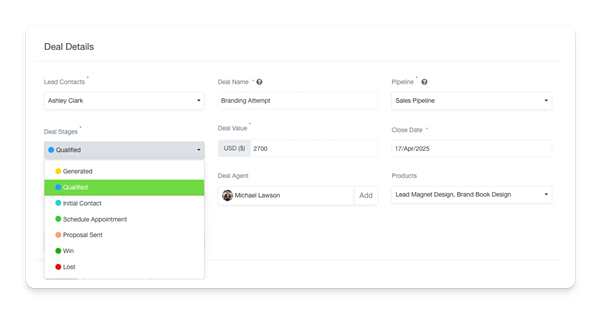
The Add Lead Info page allows users to create new leads and assign relevant details to track their progress effectively.
Lead Details Fields
- Lead Contacts (Required): Select the associated lead from existing contacts.
- Lead Name (Required): Enter a name for the lead.
- Pipeline (Required): Choose the sales pipeline where the lead will be managed.
- Lead Stages: Select the current stage of the lead. Available options:
- Generated (Default)
- Qualified
- Initial Contact
- Schedule Appointment
- Proposal Sent
- Win
- Lost
- Lead Value (Required): Enter the estimated value of the lead in USD.
- Close Date (Required): Set the expected closing date of the lead.
- Lead Agent: Assign a responsible team member to handle the lead.
- Products: Select relevant products associated with the lead.
- Lead Category: Categorize the lead based on business needs.
- Lead Watcher: Add a user to monitor the lead’s progress.
Actions Available
- Save: Stores the lead information.
- Save & Add More: Saves the current lead and opens a new entry form.
- Cancel: Discards changes and returns to the Leads page.
This feature helps in structuring leads systematically, ensuring they progress efficiently through the pipeline.
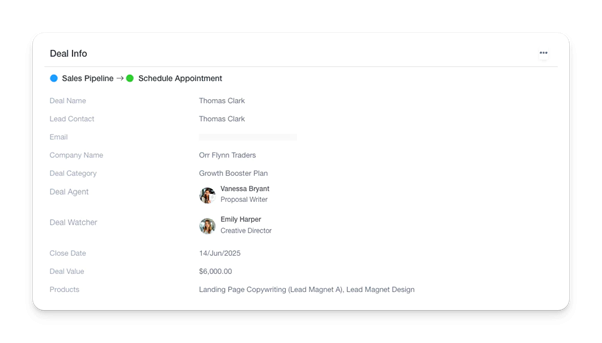
Lead Info
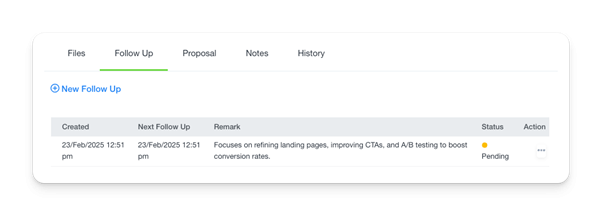
Leads Follow Up
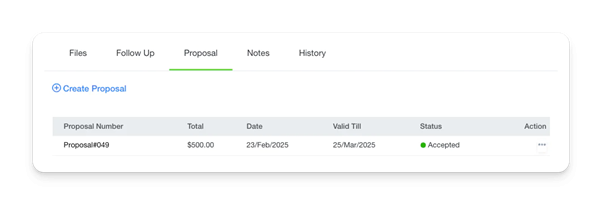
Leads Proposal
Import Lead
Import Lead
The Import Lead feature allows users to upload multiple leads at once using an Excel (XLS, XLSX) or CSV file. This is useful for bulk data entry, ensuring efficiency and accuracy when managing leads.
Steps to Import Leads:
- Access the Import Lead Page:
- Navigate to the Leads section under the Leads tab.
- Click the Import button.
- Upload the File:
- Click on Choose a file and select the appropriate file from your computer.
- The file must be in XLS, XLSX, or CSV format.
- Ensure that the date format is in Y-m-d (e.g., 2025-03-01) as required.
- File Contains Headings Row (Optional):
- If your file contains a header row, enable the toggle switch to ensure proper column mapping.
- Required Fields for Import:
- The following fields must be matched correctly before proceeding:
- Pipeline
- Lead Stages
- Lead Value
- Close Date
- The following fields must be matched correctly before proceeding:
- Proceed to Next Step:
- Click the Upload and Move to Next Step button to proceed.
Import Lead – Finalizing Data Matching
At this step in the Import Lead process, the system displays the uploaded data, allowing the user to match columns from the Excel file to the corresponding fields required in the system. The green success message at the top confirms that all columns have been successfully matched.
Key Sections in this Step:
- Pipeline: The sales pipeline each lead belongs to.
- Lead Stages: The current status of each lead, such as Generated, Qualified, Initial Contact, or Schedule Appointment.
- Lead Value: The financial worth of the lead.
- Close Date: The expected date the lead will be closed.
- Lead Name: A descriptive label for each lead.
- Lead Contact Email: Now correctly matched, this field ensures that each lead is linked to the respective contact via email.
Additional Information:
- “Will Not Be Imported” Fields: Some columns, like Lead Agent and Products, were included in the file but were not mapped for import. If these are necessary, the user must manually match them by clicking “Edit.”
- Skipped Columns: The system allows the user to skip certain columns if they are not relevant for the current import.
Next Actions:
- If all fields are correctly mapped: Click the Submit button to complete the import process.
- If changes are needed: Click Edit on any field that needs correction.
- If any columns should be skipped: The user can click Skip for those columns.
Once submitted, the system will process the data, and the imported leads will be available in the Leads section.
Exporting Leads
The Export feature in the Leads section allows users to download lead records in XLSX format for external use. When clicking the Export button, the system automatically generates and downloads a file containing all the leads currently displayed in the system.
Key Details:
- The exported file includes lead-related information such as Lead Name, Lead Name, Contact Details, Lead Value, Close Date, Next Follow-Up, Lead Agent, Lead Watcher, and Lead Stage.
- Users can apply filters before exporting to refine the dataset and ensure only the relevant leads are included.
- The exported XLSX file maintains the same format and structure as displayed in the system, making it easy to analyze or share with external teams.
- This feature is useful for reporting, data analysis, and record-keeping outside the system.
By utilizing the export functionality, users can efficiently manage lead records and maintain structured reports for business tracking and decision-making.